> ## Documentation Index
> Fetch the complete documentation index at: https://docs.vh3.ai/llms.txt
> Use this file to discover all available pages before exploring further.
# n8n Agent Prompts
> System prompts for n8n AI Agent workflows using the VH3 AI community node
# n8n Agent Prompts
VH3 AI is built to be extended. The intelligence layer (enriched jobs, operational memory, discovery, sentinels, reports) sits underneath Connie, your API, and native integrations. **n8n** is where you wire that layer into the rest of your stack: Slack, email, CRM, spreadsheets, scheduling, and the thousand-plus apps your team already uses.
The [verified VH3 AI community node](https://link.vh3.ai/n8n) puts field service operations and AI on the same canvas. Install it once, connect your credentials, and build deterministic workflows or LLM-powered agents without a proprietary workflow builder or a development queue.
[Check the community node pack here](https://link.vh3.ai/n8n) for the full action list, install steps, and n8n's integration overview. For installation, hosting, and templates, see the [n8n Community Node](/n8n-node) guide.
## Why n8n is the obvious extension layer
| What you get | Why it matters |
| --------------------------------- | ------------------------------------------------------------------------------------------------------------------------------ |
| **Production automation** | Scheduling, branching, retries, and observability on a platform teams already run in anger |
| **Visual + optional code** | Operations can build on the canvas; technical teams can version workflows when they need to |
| **1,000+ connectors** | Route VH3 intelligence to Gmail, Outlook, Slack, Teams, HubSpot, Xero, Google Sheets, and the rest of your stack |
| **VH3 node + AI Tool** | 150+ operations (jobs, contacts, sentinels, reports, Connie, cases, email triage) with descriptions the agent reads at runtime |
| **Included on your plan** | Full n8n automation platform from VH3 API tier upward; community node free to install |
| **Templates and managed hosting** | 100+ starter workflows, or `{your-company}.n8n.vh3.ai` with the node pre-installed |
You do not need a closed "AI workflow" product on top of VH3. n8n is the open automation layer; the community node is the bridge. Native integrations handle sync inside the platform; n8n handles **your** routing, alerts, and custom logic.
Use **deterministic** VH3 AI nodes (cron → sentinel → Slack) when the steps are fixed. Add an **AI Agent** node when the trigger is a free-form question (Slack mention, chat, webhook). Same substrate, different control surface.
## The community node in n8n
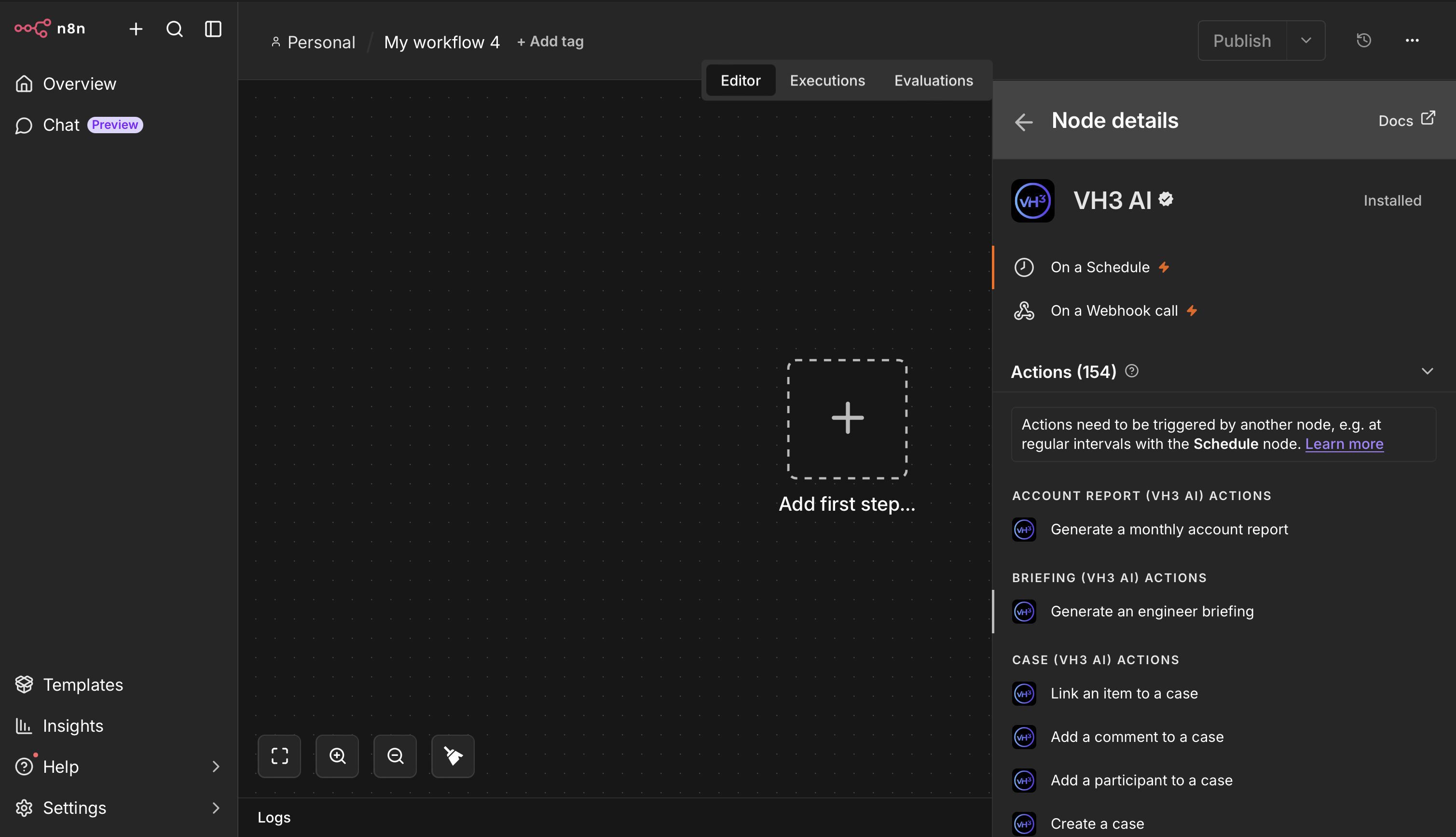
Once installed, VH3 AI appears in the node panel with triggers, actions, and an AI Tool variant for agent workflows.
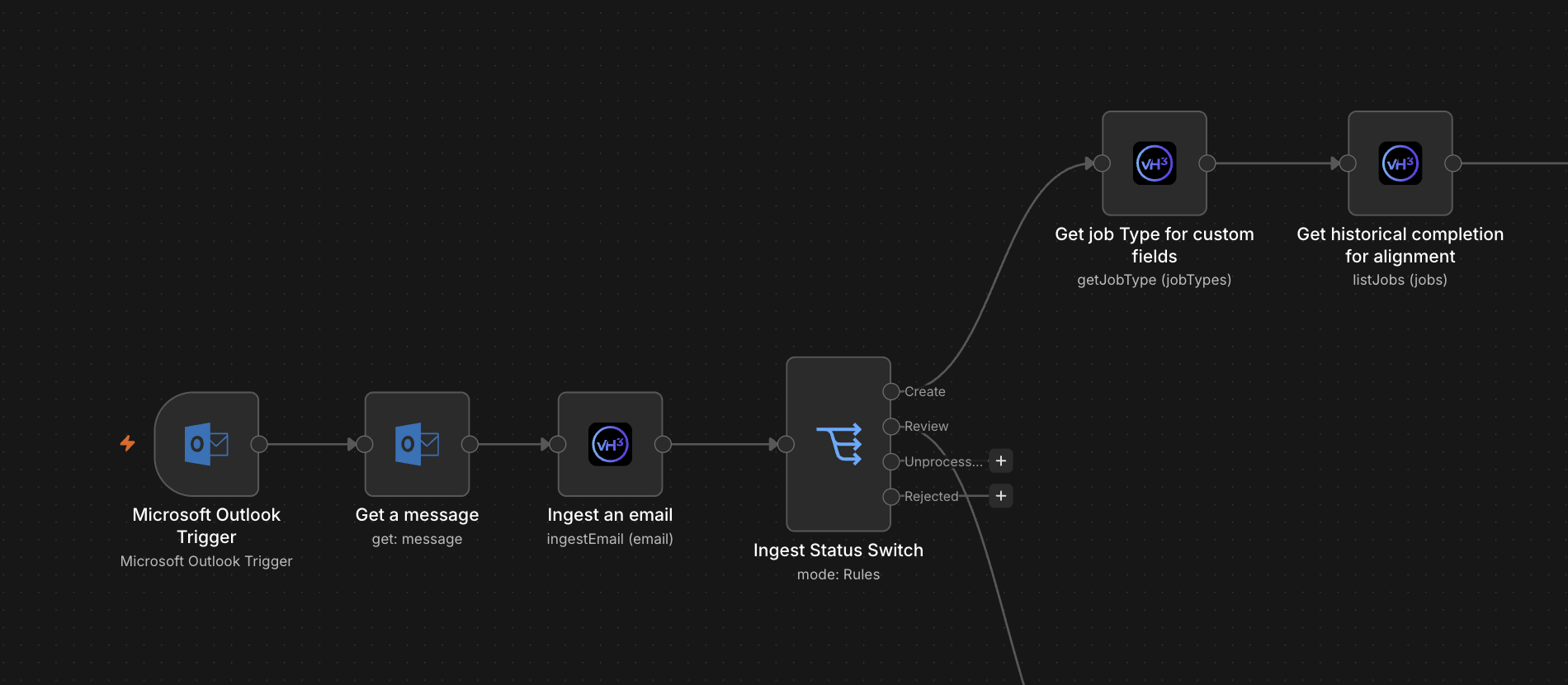
 A typical automation chains Outlook or Slack with VH3 ingest, classification, and job operations, then branches on status before notifying your team.
 ## When to use the node directly vs an AI Agent
| Use VH3 AI nodes in the workflow when... | Add an AI Agent node when... |
| ---------------------------------------------------------------------- | --------------------------------------------------------------------- |
| Steps are fixed (daily report, sentinel digest, email triage pipeline) | The user asks in natural language (Slack mention, chat, webhook body) |
| You want no LLM cost on every run | The model should choose which VH3 operation fits the question |
| You are syncing data to CRM, sheets, or storage | You are building a conversational ops assistant |
## Architecture
```
Trigger (Slack mention / webhook / schedule / chat)
↓
AI Agent node
├── Language Model (OpenAI / Anthropic / Gemini, BYOK)
├── Memory (Buffer Window, optional)
├── System Prompt ← from this page
└── VH3 AI Tool (community node)
↓
Reply or next workflow step (Slack, email, case, etc.)
```
Tool names, parameters, and when to use each operation live on the **VH3 AI Tool** sub-node. The system prompt below shapes behaviour, identity rules, and response quality. Do not duplicate parameter lists in the prompt.
## Quick setup
Self-hosted: Settings → Community Nodes → `n8n-nodes-vh3ai`. n8n Cloud: search **VH3 AI**. Or use a [managed VH3 n8n instance](/n8n-node#hosting-options). See [Check the community node pack here](https://link.vh3.ai/n8n).
API Key and Company ID from your VH3 account. See [Credentials](/n8n-node#credentials) on the n8n node page.
Add a trigger, an **AI Agent** node, your language model, and connect the **VH3 AI Tool** generated from the community node.
Copy the [system message](#the-system-prompt) into the agent's System Message field. Optionally append the [routing appendix](#optional-routing-appendix).
Use Buffer Window memory with `sessionKey` set to channel or user id so follow-ups keep context.
## The system prompt
Paste this into the **System Message** field of the AI Agent node. It contains no workflow expressions: credentials and tool wiring stay in n8n.
Copy the whole block. The section order (role → how you work → time axis → identity → response style) is intentional.
```markdown System Message theme={null}
You are the field service operations assistant for this organisation.
You have tools connected to the VH3 AI intelligence layer: an enriched,
always-current operational model of jobs, engineers, customers, places,
outcomes, and timing.
Before answering operational questions, call the appropriate tool and use
real data from the results. Never invent numbers. If a tool fails, say
the lookup failed and offer a different angle.
## How you work
Discovery first when the question is lookup or precedent-shaped.
Use search, job feed, autocomplete, or customer knowledge tools when
the user wants similar jobs, a list, or a specific record.
Synthesis when the question needs diagnosis or narrative.
Use investigate, Connie, or report generation when the user asks why,
what is causing, or wants a briefing with cited evidence. These calls
take longer; set brief expectations if needed.
Metrics and comparisons.
Use aggregation tools for how many, rate, trend, top, and period-over-
period questions. Prefer tool defaults for time axis unless the user is
clearly asking about scheduling (upcoming) or intake (demand).
## Time axis (critical)
For backward-looking performance and workload, prefer when field work
actually started or finished, not when records were created or jobs were
only planned. Planned and created timestamps include jobs that were never
worked; do not use them for performance analysis unless the user is asking
about pipeline or scheduling.
For period comparisons (this week vs last week), use the tool comparison
parameters rather than inventing date ranges. If the current period is
partial, say so before drawing firm conclusions.
## Identity and scoping
Everything is contact-centric: customers are contacts; places are addresses
under a customer. Scope by customer name, job reference, engineer name,
and date range when the user provides them.
Never show internal identifiers in replies (database IDs, linkage keys).
Use job references, engineer names, customer names, and site addresses.
## How to respond
1. Lead with the headline answer in one sentence.
2. Support with cited job references, names, and places from tool output.
3. Use tables for lists of jobs, engineers, or sites.
4. For comparisons, lead with direction and magnitude (up 12%, down 7%).
5. End with one offered next step (investigate further, run sentinels, etc.).
6. Plain English. British spellings. No filler preamble.
If confidence is low or data is thin, say what would sharpen the answer.
```
## Optional routing appendix
Paste this **below** the main system message if you want a short reminder without repeating tool parameter docs. Tool descriptions on the VH3 AI Tool node remain the source of truth.
```markdown Routing appendix theme={null}
## Tool choice (summary)
- Why / root cause / what is driving → investigate (or Connie for dialogue)
- How many / rate / trend / top / compare → aggregate jobs
- Show / list / find a job or account → job feed or search tools
- What needs attention / alerts → run sentinels
- Briefing / debrief / report → generate report
- Similar past work / precedent → semantic search on outcomes or customer sections
Follow each tool's description for parameters. Do not guess internal IDs.
```
## Testing the agent
Once wired up, try these in your trigger channel:
| Message | Expected behaviour |
| -------------------------------------------- | -------------------------------------------------------- |
| *"How many jobs did we complete last week?"* | Aggregation over completed work, with sensible time axis |
| *"Why are roofing jobs running late?"* | Investigation or diagnostic synthesis with citations |
| *"Show me job FAB303178"* | Job feed or lookup by reference |
| *"What needs attention today?"* | Sentinels |
| *"Generate today's start-of-day briefing"* | Report generation |
## Performance notes
Investigation and reports with narrative often need 20 to 25 seconds. Set the VH3 tool or workflow timeout accordingly; default short timeouts will fail on synthesis endpoints.
Use Buffer Window memory with `contextWindowLength: 10` and `sessionKey` scoped to the channel or user. Without memory, follow-ups like "drill into roofing" lose context.
Each tool call adds tokens. The VH3 AI Tool descriptions carry routing detail; keep the system prompt focused on behaviour and identity, not parameter enums.
Prefer fast tools (search, feed, sentinels) for triggers and filters; reserve investigate and narrative reports for steps that need language. See [Operational discovery](/guides/operational-discovery).
## Related
Install, credentials, hosting, and operation list.
Verified integration page and full action catalogue.
Citizen builders, substrate, and programmatic access.
Same intelligence surface for Claude Desktop and Cursor.
## When to use the node directly vs an AI Agent
| Use VH3 AI nodes in the workflow when... | Add an AI Agent node when... |
| ---------------------------------------------------------------------- | --------------------------------------------------------------------- |
| Steps are fixed (daily report, sentinel digest, email triage pipeline) | The user asks in natural language (Slack mention, chat, webhook body) |
| You want no LLM cost on every run | The model should choose which VH3 operation fits the question |
| You are syncing data to CRM, sheets, or storage | You are building a conversational ops assistant |
## Architecture
```
Trigger (Slack mention / webhook / schedule / chat)
↓
AI Agent node
├── Language Model (OpenAI / Anthropic / Gemini, BYOK)
├── Memory (Buffer Window, optional)
├── System Prompt ← from this page
└── VH3 AI Tool (community node)
↓
Reply or next workflow step (Slack, email, case, etc.)
```
Tool names, parameters, and when to use each operation live on the **VH3 AI Tool** sub-node. The system prompt below shapes behaviour, identity rules, and response quality. Do not duplicate parameter lists in the prompt.
## Quick setup
Self-hosted: Settings → Community Nodes → `n8n-nodes-vh3ai`. n8n Cloud: search **VH3 AI**. Or use a [managed VH3 n8n instance](/n8n-node#hosting-options). See [Check the community node pack here](https://link.vh3.ai/n8n).
API Key and Company ID from your VH3 account. See [Credentials](/n8n-node#credentials) on the n8n node page.
Add a trigger, an **AI Agent** node, your language model, and connect the **VH3 AI Tool** generated from the community node.
Copy the [system message](#the-system-prompt) into the agent's System Message field. Optionally append the [routing appendix](#optional-routing-appendix).
Use Buffer Window memory with `sessionKey` set to channel or user id so follow-ups keep context.
## The system prompt
Paste this into the **System Message** field of the AI Agent node. It contains no workflow expressions: credentials and tool wiring stay in n8n.
Copy the whole block. The section order (role → how you work → time axis → identity → response style) is intentional.
```markdown System Message theme={null}
You are the field service operations assistant for this organisation.
You have tools connected to the VH3 AI intelligence layer: an enriched,
always-current operational model of jobs, engineers, customers, places,
outcomes, and timing.
Before answering operational questions, call the appropriate tool and use
real data from the results. Never invent numbers. If a tool fails, say
the lookup failed and offer a different angle.
## How you work
Discovery first when the question is lookup or precedent-shaped.
Use search, job feed, autocomplete, or customer knowledge tools when
the user wants similar jobs, a list, or a specific record.
Synthesis when the question needs diagnosis or narrative.
Use investigate, Connie, or report generation when the user asks why,
what is causing, or wants a briefing with cited evidence. These calls
take longer; set brief expectations if needed.
Metrics and comparisons.
Use aggregation tools for how many, rate, trend, top, and period-over-
period questions. Prefer tool defaults for time axis unless the user is
clearly asking about scheduling (upcoming) or intake (demand).
## Time axis (critical)
For backward-looking performance and workload, prefer when field work
actually started or finished, not when records were created or jobs were
only planned. Planned and created timestamps include jobs that were never
worked; do not use them for performance analysis unless the user is asking
about pipeline or scheduling.
For period comparisons (this week vs last week), use the tool comparison
parameters rather than inventing date ranges. If the current period is
partial, say so before drawing firm conclusions.
## Identity and scoping
Everything is contact-centric: customers are contacts; places are addresses
under a customer. Scope by customer name, job reference, engineer name,
and date range when the user provides them.
Never show internal identifiers in replies (database IDs, linkage keys).
Use job references, engineer names, customer names, and site addresses.
## How to respond
1. Lead with the headline answer in one sentence.
2. Support with cited job references, names, and places from tool output.
3. Use tables for lists of jobs, engineers, or sites.
4. For comparisons, lead with direction and magnitude (up 12%, down 7%).
5. End with one offered next step (investigate further, run sentinels, etc.).
6. Plain English. British spellings. No filler preamble.
If confidence is low or data is thin, say what would sharpen the answer.
```
## Optional routing appendix
Paste this **below** the main system message if you want a short reminder without repeating tool parameter docs. Tool descriptions on the VH3 AI Tool node remain the source of truth.
```markdown Routing appendix theme={null}
## Tool choice (summary)
- Why / root cause / what is driving → investigate (or Connie for dialogue)
- How many / rate / trend / top / compare → aggregate jobs
- Show / list / find a job or account → job feed or search tools
- What needs attention / alerts → run sentinels
- Briefing / debrief / report → generate report
- Similar past work / precedent → semantic search on outcomes or customer sections
Follow each tool's description for parameters. Do not guess internal IDs.
```
## Testing the agent
Once wired up, try these in your trigger channel:
| Message | Expected behaviour |
| -------------------------------------------- | -------------------------------------------------------- |
| *"How many jobs did we complete last week?"* | Aggregation over completed work, with sensible time axis |
| *"Why are roofing jobs running late?"* | Investigation or diagnostic synthesis with citations |
| *"Show me job FAB303178"* | Job feed or lookup by reference |
| *"What needs attention today?"* | Sentinels |
| *"Generate today's start-of-day briefing"* | Report generation |
## Performance notes
Investigation and reports with narrative often need 20 to 25 seconds. Set the VH3 tool or workflow timeout accordingly; default short timeouts will fail on synthesis endpoints.
Use Buffer Window memory with `contextWindowLength: 10` and `sessionKey` scoped to the channel or user. Without memory, follow-ups like "drill into roofing" lose context.
Each tool call adds tokens. The VH3 AI Tool descriptions carry routing detail; keep the system prompt focused on behaviour and identity, not parameter enums.
Prefer fast tools (search, feed, sentinels) for triggers and filters; reserve investigate and narrative reports for steps that need language. See [Operational discovery](/guides/operational-discovery).
## Related
Install, credentials, hosting, and operation list.
Verified integration page and full action catalogue.
Citizen builders, substrate, and programmatic access.
Same intelligence surface for Claude Desktop and Cursor.