

n8n Node — Coding Agent Reference
- Source: github.com/VH3DIGITAL/n8n-nodes-vh3ai
- npm: n8n-nodes-vh3ai
- Agent prompts: /agent-kits/n8n-agents
Connecting your AI assistant to n8n
The recommended setup: official n8n connector + this document
The official n8n connector (developed by n8n GmbH, available in the Claude connector directory) connects Claude to your live n8n instance. On instances running n8n v2.18.4 or higher, it exposes the full instance-level MCP — including workflow building, not just execution. What it can do (verified on VH3-managed instances):Open Claude Code in Code mode
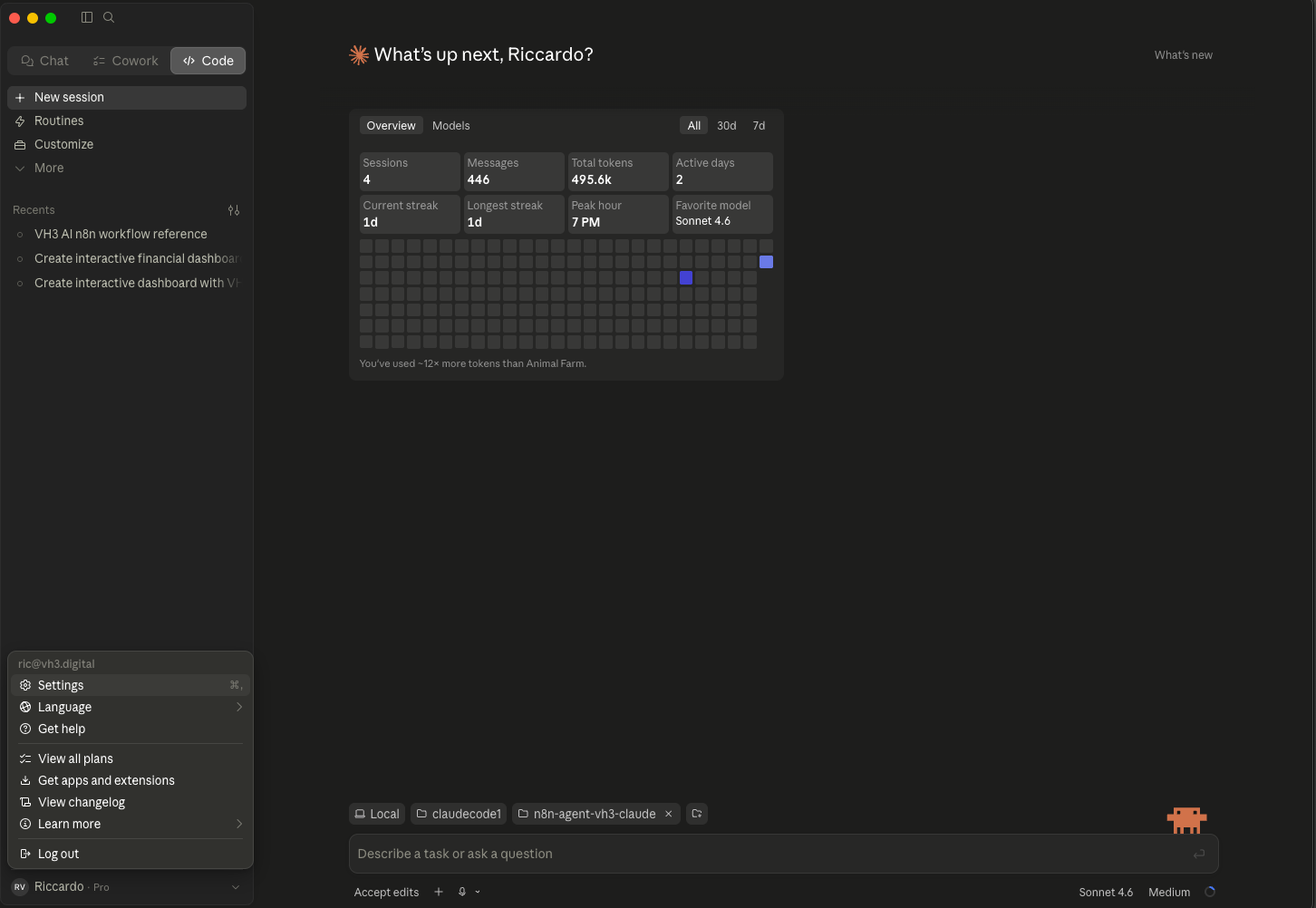
Claude Code with an active n8n connector shown in the input bar.
Open Connectors → Browse connectors
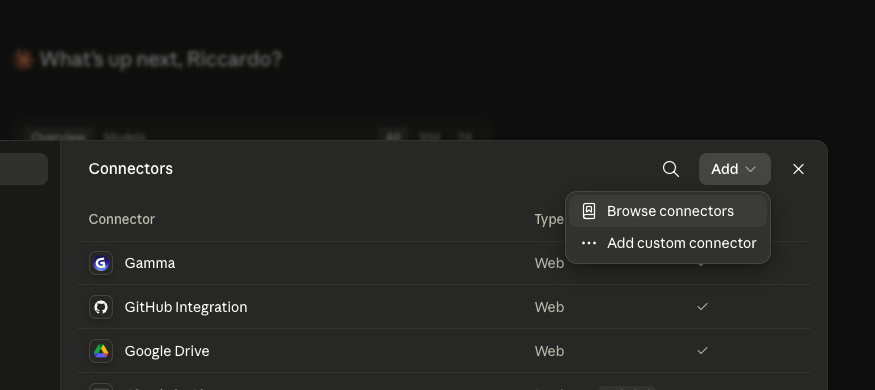
The Connectors panel with the Add dropdown showing Browse connectors and Add custom connector options.
Search for n8n in the directory
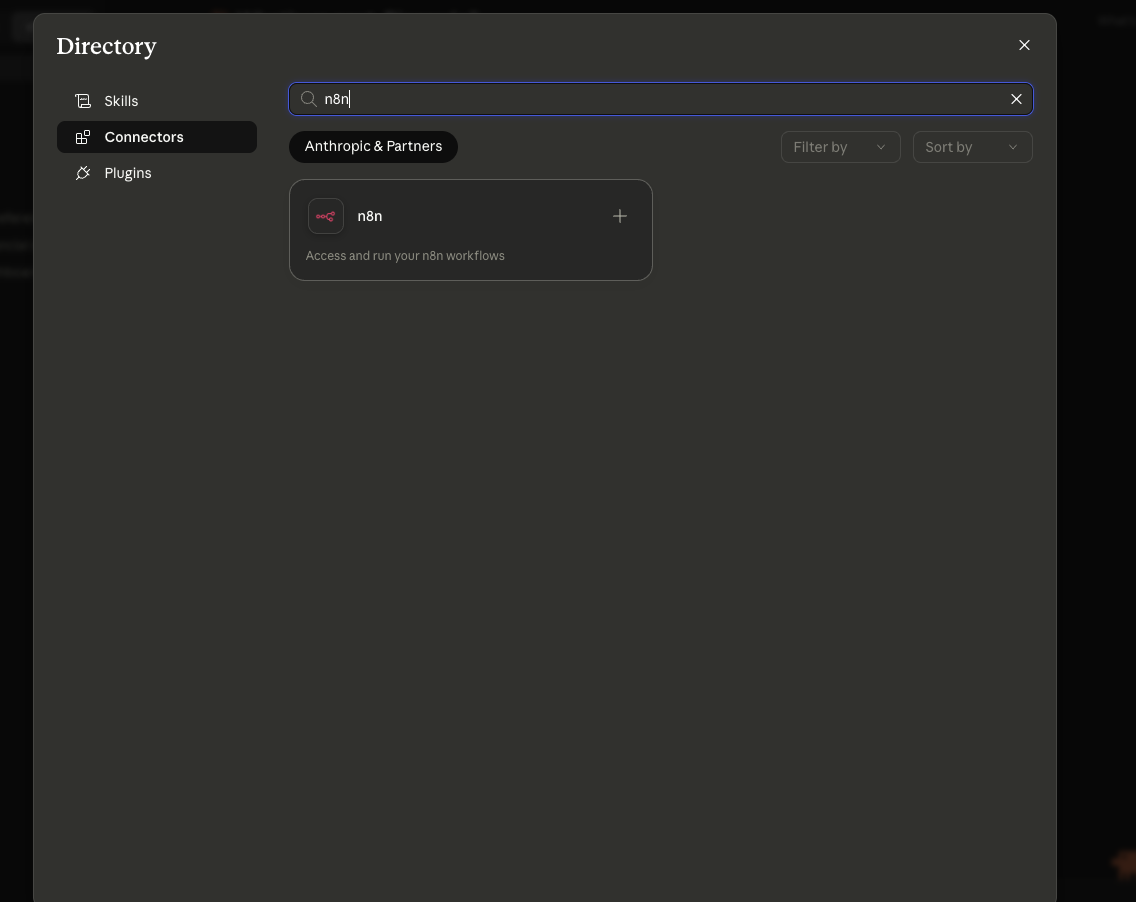
The Claude connector directory filtered to n8n — the official connector developed by n8n GmbH.
In n8n, open Settings → Instance-level MCP

n8n Settings menu — Instance-level MCP is at the bottom of the list.
Enable MCP and copy the Server URL
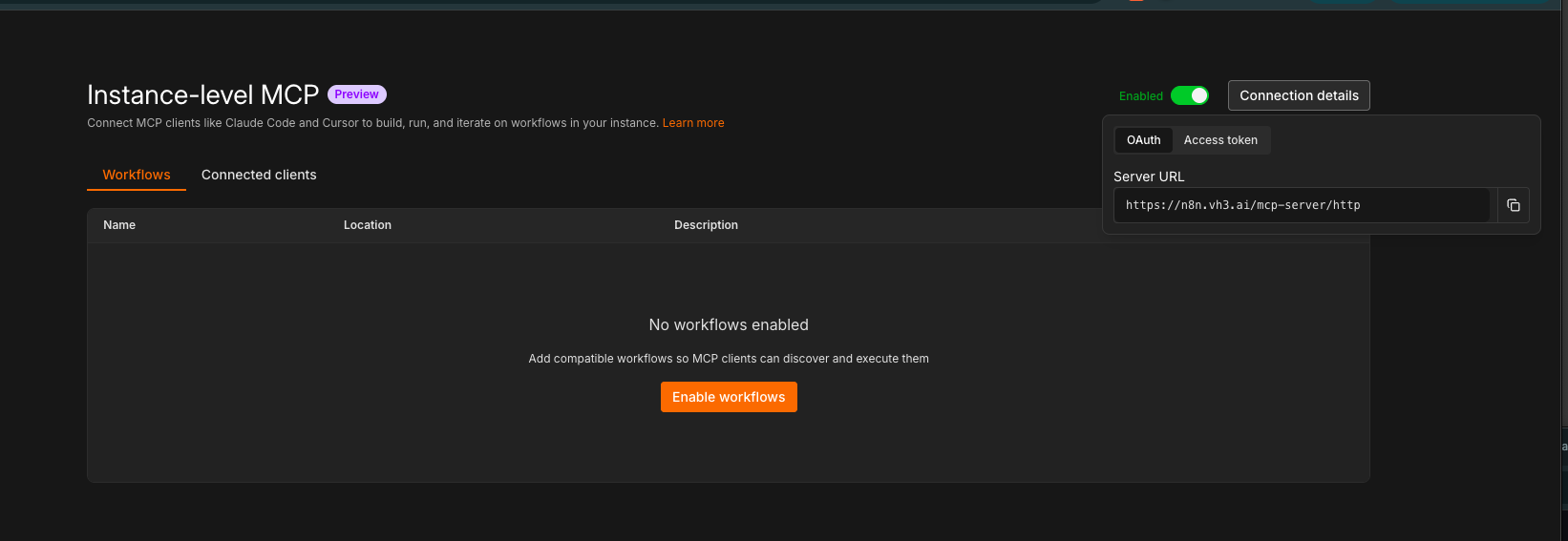
n8n Instance-level MCP — enabled, with the Server URL ready to copy.
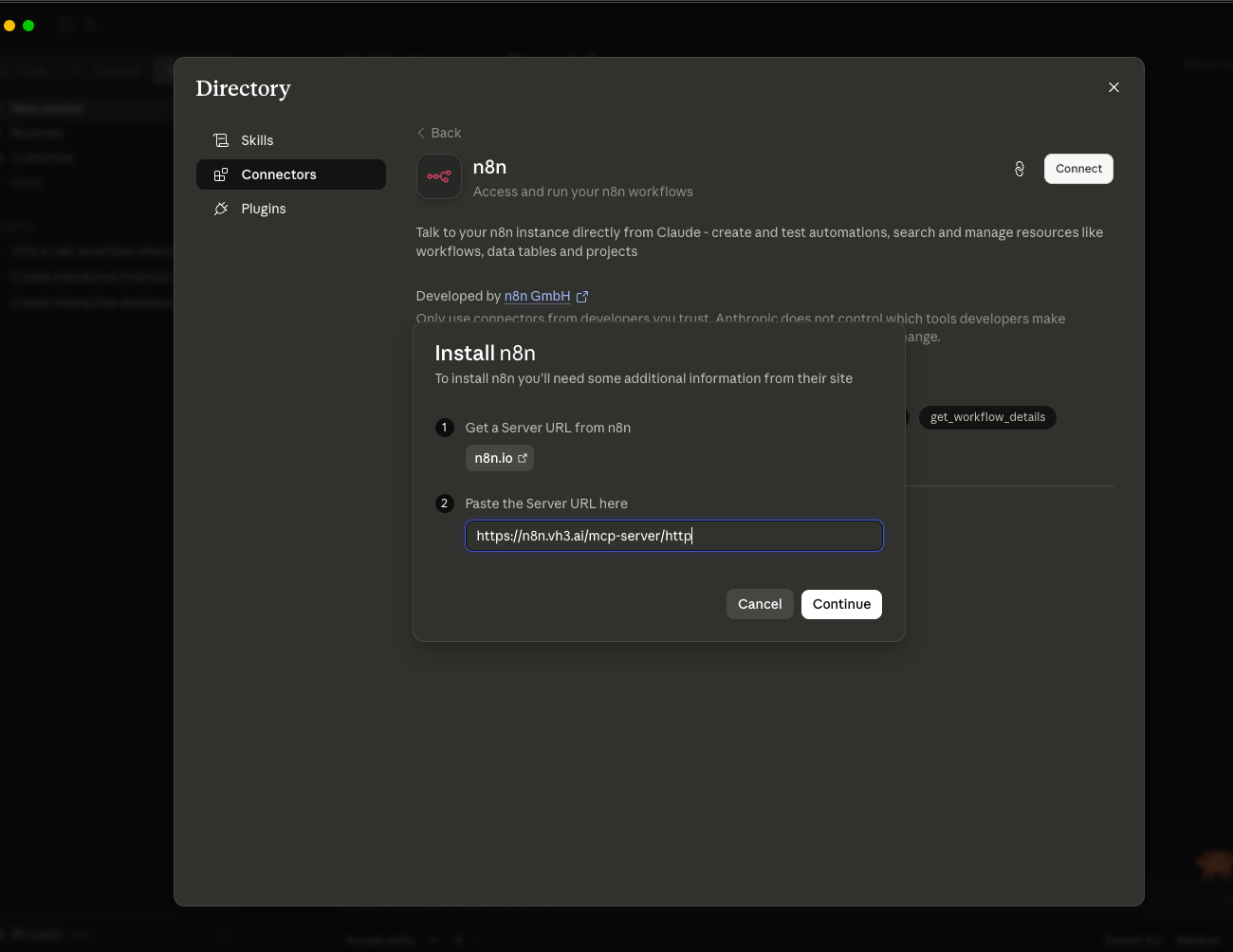
https://{your-company}.n8n.vh3.ai/mcp-server/http. Contact VH3 support if Instance-level MCP is not yet enabled on your instance.Paste the Server URL and connect
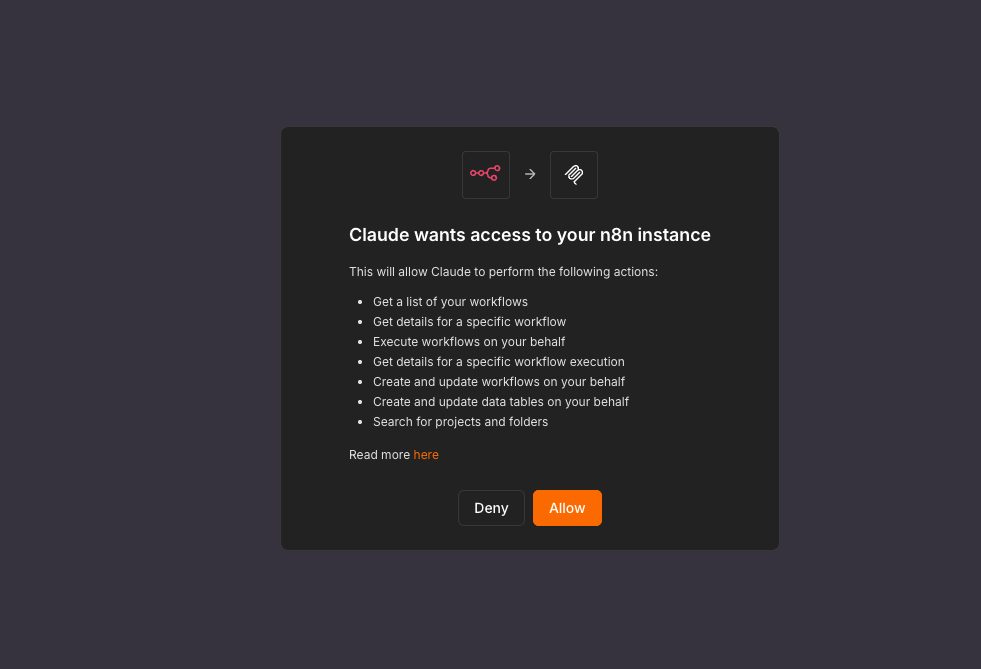
Allow OAuth access
The OAuth permission screen — Claude requests access to your n8n instance.
Connector active — start building
n8n connector installed and visible in the Claude connector directory.
https://{your-company}.n8n.vh3.ai. The n8n-nodes-vh3ai community node and VH3 credentials are pre-installed. Contact VH3 support if you need your MCP access token or API key.This reference document — the VH3 AI layer
The official n8n MCP knows n8n’s built-in nodes and the Workflow SDK. It does not know the VH3 AI community node — its resources, operations, routing rules, or patterns. Without this document, an AI assistant will not know:- Which resource and operation to choose for a given question (section 5)
- That
jobFeedshould be preferred overjobsfor reads (section 3d) - The correct
timeAxisfor performance vs intake questions (section 4) - How General Email and Portal Email ingest results route downstream (section 6.8)
- That custom field IDs must be fetched from the job type first (section 10)
- The exact node type name (
n8n-nodes-vh3ai.vh3Ai) and credential type (vh3AiApi)
Optional: czlonkowski/n8n-mcp (Cursor and offline authoring)
czlonkowski/n8n-mcp is a separate community MCP server. It is not what the official Claude n8n connector uses, and is not required for the build experience described above. Consider it if you are working in Cursor or another editor, want stricter pre-deploy validation, or need offline node schema lookup without a live n8n connection. It uses different tool names (n8n_create_workflow, get_node, etc.) and requires a one-time install via npx or Docker.
Setup: github.com/czlonkowski/n8n-mcp
Summary
1. Identity
2. Credential: vh3AiApi
Four fields are stored in the credential. Two are fixed defaults and should not be changed unless VH3 support instructs otherwise.
3. Resource taxonomy
The node exposes 38 resources split across three internal API layers. This split is invisible in the UI but critical for understanding timeout, latency, and data freshness expectations.3a. BigChange data resources (CRUD)
These map directly to the BigChange field-service platform. Operations are typically fast (<2 s). The resource values are used in$parameter["resource"].
3b. Web Services resources (BigChange driver API)
Thin proxy over the BigChange Web Services layer. Responses use different envelope shapes (result array, not data).
3c. VH3 AI intelligence resources
These call the FSI intelligence layer. They are slower (2–25 s depending on operation) and consume LLM tokens for synthesis operations.3d. FSI-first principle
When both a BigChange resource and a VH3 AI intelligence resource can answer the same question, prefer the intelligence layer. The FSI layer ingests and enriches all job data continuously. For read operations — job feeds, aggregations, search, analysis, monitoring — it is faster (often cached), returns richer data, and avoids unnecessary load on the BigChange API.4. The time axis — critical for data quality
Several Job Feed and Aggregate Jobs operations accept adateField or timeAxis parameter. Choosing the wrong axis produces misleading results.
Available timestamp fields
Decision rules
Default toactualStartAt for any performance or workload question. It reflects real field activity and excludes jobs that were planned but never worked.
this_week) is still in progress, say so before drawing conclusions. The compareTo parameter (previous_period, same_period_last_week, same_period_last_month) handles apples-to-apples comparison automatically — prefer it over inventing date ranges.
5. Routing guide — which resource and operation to use
Use this table when the user’s intent is expressed in natural language, to select the right VH3 AI node operation.6. Per-resource operation reference
6.1 Job Feed (jobFeed)
job_count, completion_rate, first_visit_fix_rate, avg_start_delta_mins, avg_end_delta_mins.
Punctuality: prefer finishedLate=true / startedLate=true (or early counterparts). Count with job_count — do not infer late volume from average delta metrics. Finish/overrun → timeAxis=actualEndAt; start/arrival → actualStartAt.
Period presets: today, yesterday, this_week, last_week, this_month, last_month, last_7_days, last_30_days, last_90_days. Override with startDate/endDate for custom ranges.
Feed sort fields: createdAt, endDeltaMins, startDeltaMins, actualEndAt, actualStartAt.
6.2 Search (search)
searchOutcomes and intake operations is applied client-side after the API responds. Set maxAgeMonths to limit result age. searchOutcomesEnriched applies date, status, and result filters server-side. Existing searchOutcomes workflows are unchanged.
6.3 Sentinel (sentinel)
carryover_accumulation, customer_noncomplete_anomaly, customer_risk_escalation, data_quality_alert, engineer_performance_slip, fvf_rate_drop, new_problem_site, repeat_failure_escalation, scheduling_accuracy_drift, site_deterioration, sla_breach_cluster, workload_imbalance.
6.4 Report (reports)
start_of_day, midday, close_of_business, day_review, start_of_week, midweek, end_of_week, account_monthly.
Set workflow/node timeout to ≥ 30 s for narrative reports.
6.5 Investigate (investigate)
6.6 Case (cases)
6.7 Connie (connie)
connieChat with sessionKey-scoped sessionId so follow-up messages retain context.
6.8 Email (email)
status downstream:
6.9 Briefing (briefing)
6.10 Account Report (accountReport)
6.11 Pulse (pulse)
6.12 Intelligence (intelligence)
6.13 Weather (weather)
6.14 Users (users)
6.15 Teams (teams)
6.16 Contact Feed (contactFeed)
contactFeed when you want VH3 context around a contact. Use contacts (BigChange) to create or edit FMS records.
6.17 Quotient (quotient)
6.18 Quote Documents (quoteDocuments)
6.19 Salma (salma)
7. BigChange CRUD resources — operation summary
All BigChange resources follow a consistent pattern. Key operations per resource:Jobs (jobs)
create, update, get, getAll, delete, schedule, unschedule, start, setResult, cancel, addStock, deleteStock, updateStockQty, addWaypoint, deleteWaypoint, addRecurrence
Contacts (contacts)
create, update, get, getAll, getByRef, delete, getGroups
Resources/Engineers (resources)
get, getAll, getGroups
Vehicles (vehicles)
get, getAll, create, update, getGroups
Invoices (invoices)
get, getAll, create, addLine, markSent, markPaid, cancel
Notes (notes)
create, update, get, getAll, delete
Persons (persons)
create, update, get, getAll, delete, getConsentHistory
Quotes (quotes)
get, getAll, create, update, addLine, markSent, markAccepted, markRejected
Sales Opportunities (salesOpportunities)
get, getAll, update, addLine, deleteLine, listProbabilities, listStages
Purchase Orders (purchaseOrders)
get, getAll, create, update, addLine, listSeries
Job Groups (jobGroups)
get, getAll, getStatusHistory
Stock (stock)
getCategories, getDetails, getItems, getMovements, getSuppliers
Reference Data (referenceData)
getDepartmentCodes, getNominalCodes
Worksheets (worksheets)
get, getAll, getQuestions, getAnswers
Worksheet Groups (worksheetGroups)
get, getAll
Job Types (jobTypes)
getAll
8. Using the node as an AI Tool sub-node
BecauseusableAsTool: true is set, the node can be attached directly to an AI Agent node as a tool. The agent reads each operation’s description field at runtime to decide which to call.
Architecture for an agent workflow
Key agent configuration notes
- System prompt: Copy the system message from /agent-kits/n8n-agents. It encodes the time-axis rules, identity scoping, and response format. Do not re-describe parameter enums in the system prompt — they live in the tool descriptions already.
- Memory: Use Buffer Window with
contextWindowLength: 10. SetsessionKeyto the channel ID or user ID so follow-up queries retain context. - Timeouts: Set the VH3 AI Tool timeout to ≥ 30 s. Investigation and narrative reports regularly take 20–25 s; default short timeouts will fail silently.
- Token cost: Each tool call adds tokens. Prefer fast operations (
search,jobFeed,contactFeed,sentinel) in high-frequency triggers. Reserveinvestigate,reports, andsalmafor steps that genuinely need language synthesis.
Combining the VH3 AI Tool with other LangChain sub-nodes
Complex ingestion workflows often pair the VH3 AI Tool with other LangChain nodes in the same agent or as adjacent steps. A common pattern is using the Information Extractor node (with a lightweight model such as Gemini Flash) to extract typed custom field values from unstructured email or document text — using the custom field schema fetched from Job Types at runtime to build the extraction prompt. This keeps field extraction data-driven rather than hardcoded to a specific job type, and handles schema changes without workflow edits. See Pattern F in section 9.When to use deterministic nodes vs. an AI Agent
9. Workflow patterns
Pattern A: Daily sentinel digest to Slack
Pattern B: Email triage pipeline
Pattern C: Enriched job briefing on job creation
Pattern D: Monthly account report loop
Pattern E: Conversational ops assistant (AI Agent)
Pattern F: FM portal email → job creation with custom field extraction
This is the core portal ingestion pattern. The key non-obvious steps are the PDF/HTML split, the Information Extractor for custom fields, and the Wait + verify step that handles indexing lag between BigChange creation and FSI visibility.Pattern H: Follow-on job → Quote Run estimate
Pattern G: Bulk tabular import (CSV / XLSX → jobs)
Converting spreadsheet rows into synthetic portal email bodies lets the sameingestEmail pipeline handle both live emails and bulk imports without duplicating job creation logic.
10. Important constraints
General
- Never expose internal IDs in agent replies. Use job references, engineer names, customer names, and site addresses.
companyIdin credentials is required for VH3 AI Intelligence operations and single-record BigChange operations.simplify: true(where available) strips null, empty string, and empty array fields from responses — recommended when passing data downstream.returnAll: trueon list operations uses automatic pagination. Only use it when you genuinely need the full dataset; large tenants can have thousands of jobs.- Batch email classification (
batchClassifyEmail) is significantly more efficient than callingclassifyEmailin a loop. Use it whenever you have multiple emails to process in the same step. - Binary data in workflows. Any workflow that handles file attachments (PDFs, spreadsheets, images) should have Binary mode set to Filesystem in the workflow settings. Without this, binary payloads are stored inline with execution records, which causes memory pressure and can silently fail on large files. Set this before building any attachment-handling or import workflow.
Destructive actions — confirm before generating
Custom fields on jobs — fetch the job type first
BigChange jobs support custom fields whose schema is defined per job type. The available fields, their IDs, and their value types vary by tenant configuration. The same principle applies to other entities with custom field support (contacts, resources). If you are unsure whether custom fields are involved, ask.Polling frequency
- Avoid high-frequency polling loops with expensive operations.
investigate,generateReport, andgenerateBriefingare not suitable for loops that run more than once per trigger event. - For sentinel monitoring, prefer
getSentinelResults(cached, returns pre-computed results instantly) overrunSentinels(re-computes) in any schedule that runs more than once or twice per day. - Where BigChange supports webhooks or event-based triggers, use them in preference to polling on a tight schedule.
- If a workflow needs to wait for a job status to change, use a wait/delay node with a reasonable interval rather than a tight loop.
Relative timestamps in expressions
Hardcoded dates make workflows brittle. Use n8n’s Luxon-based$now expression for any date that should be calculated at runtime.
dateFrom, dateTo, startDate, endDate, and month fields. Never hardcode a date string in a workflow intended to run on a schedule.
11. Workflow authoring practice
Sticky notes
Use n8n’s Sticky Note node liberally on the canvas. Add a sticky note:- At the top of every workflow describing its purpose, trigger conditions, and any VH3 or BigChange-specific context a future editor will need.
- Beside any node that calls a write operation, explaining why the write is necessary and what happens if it fails.
- Wherever a parameter value is non-obvious (e.g. a specific contact ID, hardcoded job type, or calculated expression) to explain the reasoning.
- At branch points (Switch, IF) to document the routing logic in plain English.
Capturing user preferences and recurring patterns
When building workflows for a specific tenant or user, notice patterns that emerge in how they describe their work:- Preferred job statuses, result values, or engineer groupings they always filter by.
- Specific customers or sites they monitor closely.
- Report cadences and delivery channels they rely on.
- Naming conventions for workflows, notes, and cases.
12. Quick reference: n8n JSON node block shape
subtitle expression on the node is:
={{$parameter["operation"] + " (" + $parameter["resource"] + ")"}} — you do not need to set it manually in JSON.