

Activity
Activity shows the work VH3 AI is doing for your company as it happens. Jobs syncing from your field system, photos being described, emails being triaged, briefings being written, and every turn with Connie, Salma or Tia appear here while they run, then move to the finished list. Path:/activity
Every user can open Activity. It shows your own company’s work only.
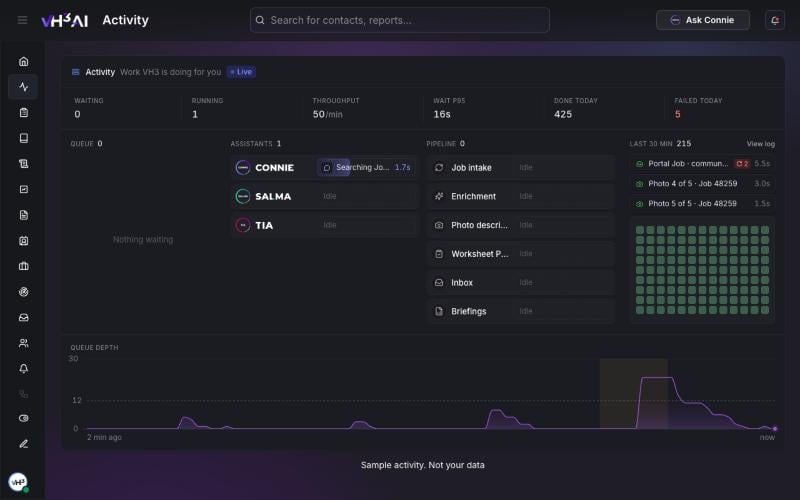
Activity: the queue on the left, a lane for each assistant and each part of the pipeline, and the last 30 minutes of finished work on the right. Shown with sample activity.
Open Activity
- Sign in at app.vh3.ai.
- Select Activity in the sidebar, under Dashboard.
- Leave the page open. It refreshes every couple of seconds while the tab is in view, and catches up when you come back to it.
What the page shows
A lane reads Idle when it has nothing running. When it gets busy it opens extra rows, one for each task running at the same time.
What each lane covers
Tasks about a job carry the job’s reference. Reading and searching inside a turn counts as part of that turn, so one question to Connie shows as one task.
What an assistant is doing
While Connie, Salma or Tia works on a turn, the running bar says what they are doing at that moment. For example:- Searching Jobs, Looking up customers, Checking the schedule
- Reading the Library, Checking the weather, Building a report
- Reading the quote, Searching parts, Drafting changes, Updating the quote
- Writing the reply once the answer is ready
Look at one task
Hover a task to see its details. Click it, or press Enter, to keep the details open, and press Escape or Close details to close them. The details show the task’s status, how long it waited and ran, its place in the queue, and which attempt it is on. Activity is read-only. Tasks run and finish by themselves; the page shows you where each one is.The log
Choose View log at the top of Last 30 min to see everything that finished in the last hour, newest first. Each row shows the time, the task, its lane and how long it ran. A failed task says why in one sentence, for example The photo could not be read. Choose Show 100 more for older rows, and Hide log to close it.When to use Activity
- After a sync or an import — check that jobs are arriving and being read.
- When Connie seems slow — see whether she is working on your turn and what step she is on.
- After a busy morning — check Failed today, then open the log to see what failed and why.