

Worksheet Pass
Worksheet Pass tidies or rewrites the free-text answers engineers write on their worksheets. Choose which worksheets it works on and, for each free-text question, how it treats the answer: fix the spelling and grammar, turn the note into a short report, or keep needed work in the future tense. Every result is checked before it can be used. Try your settings on real answers before you save them. Path:/settings/worksheet-pass
Admins only. Worksheet Pass sits at the bottom of the sidebar.
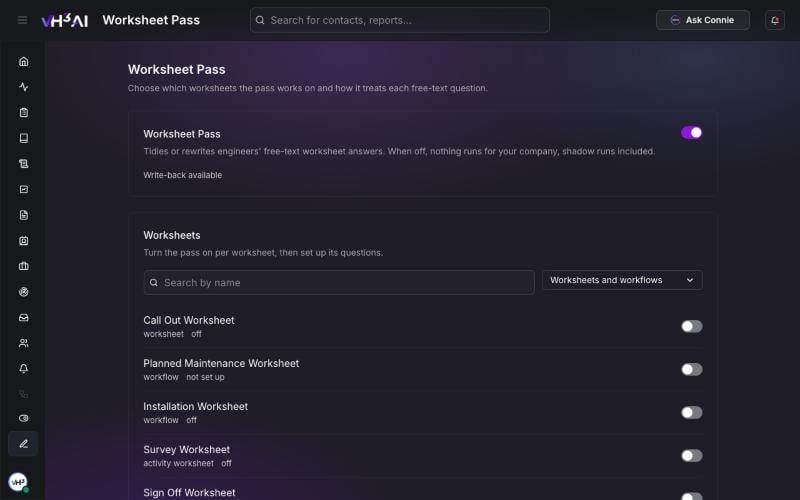
The Worksheet Pass page: the company switch, then every worksheet from your field system. Worksheet names are placeholders.
How it works
- An engineer completes a job and fills in its worksheet.
- After VH3 AI has read the job, Worksheet Pass reads the free-text answers on worksheets you have switched on.
- For each question with a style, it writes a new version of the answer.
- A checker compares the new version with what the engineer wrote. It blocks a change that adds something the engineer did not say, leaves out a location, a reason or a next step, makes something uncertain sound certain, or changes whether work was done or is still needed.
- With Write back to BigChange on, a result that passes replaces the answer in BigChange. A job note titled VH3 Rewrite keeps the engineer’s original text.
Switch it on
- Open Worksheet Pass at the bottom of the sidebar.
- Turn on the Worksheet Pass switch at the top. When it is off, nothing runs for your company.
- Under Worksheets, find a worksheet with Search by name, or narrow the list to Worksheets or Workflows.
- Open the worksheet. If it says Not set up yet, choose Set up worksheet.
- Choose a style for each free-text question, try it, and save. See below.
- Turn on Pass on for the worksheet.
Set up a worksheet
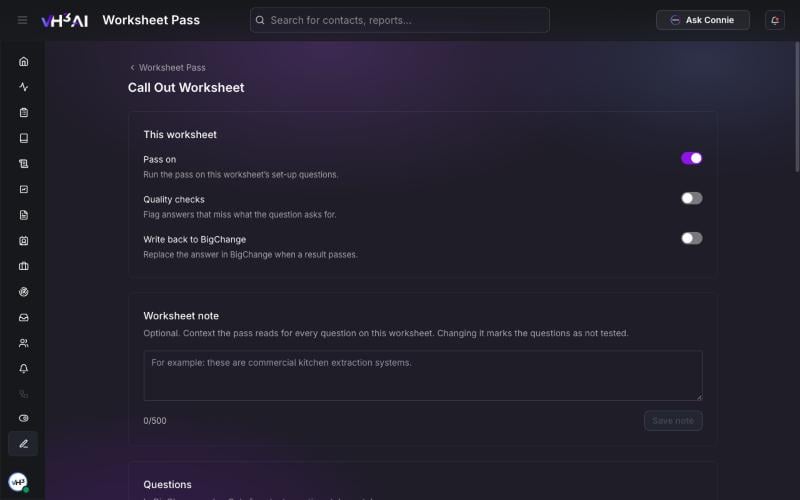
This worksheet: the pass, quality checks and write-back each have their own switch. The worksheet name is a placeholder.
This worksheet
All three start off. The status under the company switch says whether write-back is available for your company yet. Until it is, the write-back switch is greyed out. Ask VH3 support when you are ready to write back.
Worksheet note
An optional note, up to 500 characters, that the pass reads for every question on this worksheet. For example: these are commercial kitchen extraction systems. Changing it marks the questions as not tested, so try them again.Questions
Questions are listed in BigChange order. Only free-text questions take a style; the rest are marked not free text. When new free-text questions appear in BigChange, a banner offers Add them to settings. They are added as Off.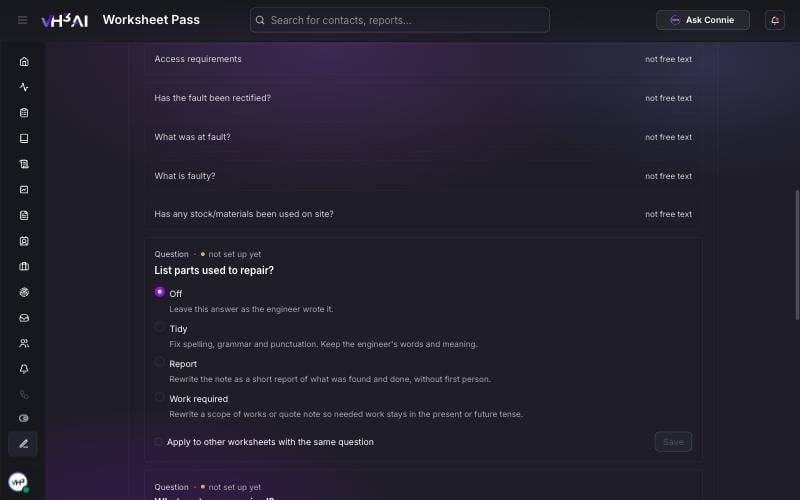
Each free-text question takes one of four styles.
For each question you can also set:
- Voice — the style’s default, Impersonal, or As written.
- Length — the style’s default, Tight, Standard or Loose. A result outside the range does not pass.
- Guidance for this question — up to 500 characters on what this question is for. VH3 AI may suggest guidance from your engineers’ past answers; choose Use and try it or Dismiss.
Try it before you save
Choose Try it on a real answer on a question. Pick one of your engineers’ recent answers to that question, newest first, or paste one. Try it runs the settings on screen on that answer and shows the result. Nothing is stored or written to BigChange.
New or changed guidance can only be saved after you have tried it. Each question shows whether it is tested, or not tested since last change. Your company can run Try it 50 times in any 24 hours.