

Sentinels
Sentinels is where your team reviews what VH3 AI’s sentinels have found: engineers slipping, sites getting worse, customers at risk, and work worth quoting. Open an alert to see why it fired and the jobs behind it, acknowledge it or snooze it, and tune each sentinel so it alerts at the level that suits your operation. Path:/sentinels
The Sentinels page is switched on per company. If Sentinels is missing from your sidebar, ask VH3 support to switch it on.
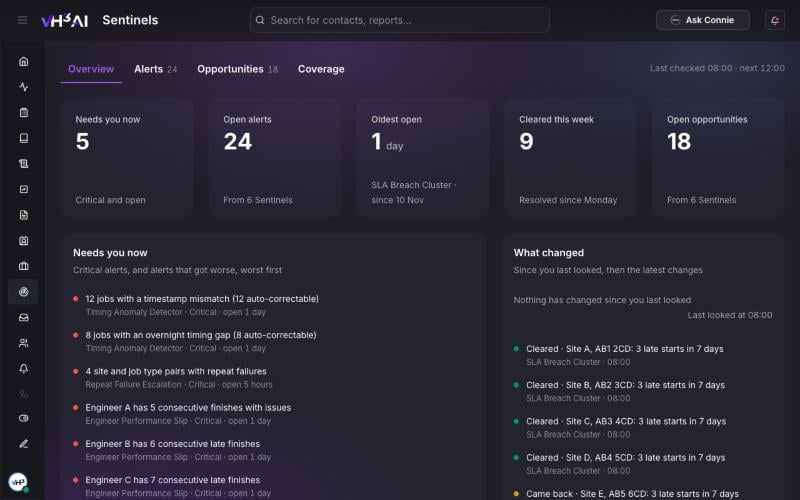
The Overview tab: what needs you now, and what changed since you last looked. Names and addresses are placeholders.
Who sees what
The four tabs
The page opens on Overview. The line at the top right says when the sentinels last checked and when they check next.Overview
- Tiles — Needs you now, Open alerts, Oldest open, Cleared this week and Open opportunities. Each tile opens the matching list.
- Needs you now — critical alerts and alerts that got worse, worst first.
- What changed — a line such as Since you last looked: 5 new · 2 got worse · 4 cleared, then the latest changes with who made them and when.
- Charts — alerts opened and cleared over 30 days, open alerts by area and by severity, and the busiest sentinels.
- Opportunities at a glance — the opportunities ready to pursue.
Alerts and Opportunities
Alerts lists risks. Opportunities lists work worth pursuing. Both group items by sentinel, worst first, and show a severity count in each group’s header.
Use Filters to narrow the list by area, severity or priority. Alerts use critical, warning and info. Opportunities use Urgent, Act soon and Worth a look.
Coverage
Coverage shows every sentinel in a card, grouped by area: Engineers, Sites, Customers, Operations and Opportunities. Each card shows whether the sentinel is on, when it runs, when it last checked and how many alerts are active. Select a card to open its settings. Company settings opens the settings every sentinel shares.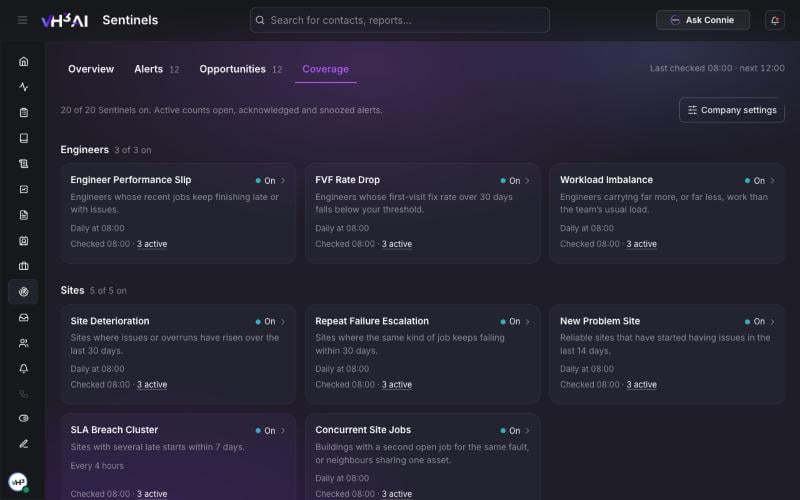
The Coverage tab: one card for each sentinel. Counts are placeholders.
Work an alert
- Open Alerts, or select an alert under Needs you now.
- Read the alert. On a wide screen it opens beside the list; on a phone it opens as a drawer.
- Why this fired — the thresholds and the evidence.
- Involved — the jobs behind the alert. Select a job reference to open the job.
- What to do — the suggested next step.
- History — who acknowledged or snoozed it, and when.
- Choose an action:
- Acknowledge — you have seen it and are dealing with it.
- Snooze — hide it for 7, 14 or 30 days. On an opportunity this is Not now.
- Reopen — put an acknowledged or snoozed alert back in the open list.
- Each action shows Undo for a moment, in case you chose the wrong one.
Sentinel settings
Admins and managers change settings. Other roles see them read-only.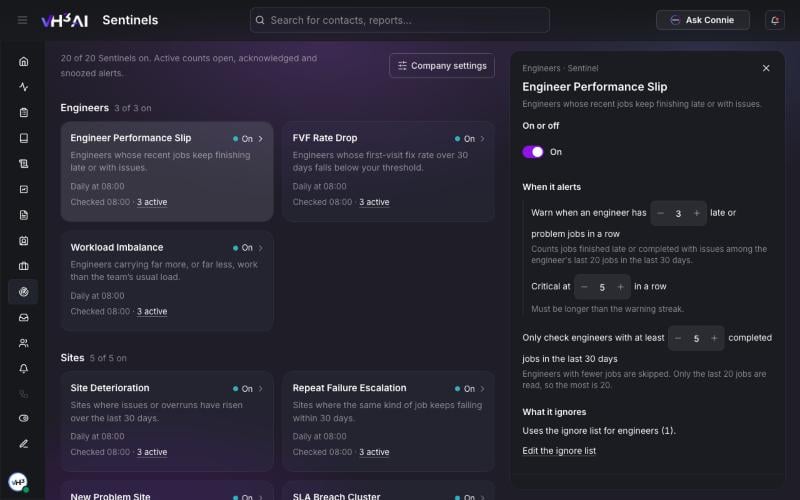
Settings for one sentinel open beside the Coverage tab.
One sentinel
Open Coverage and select a sentinel.- On or off — switching a sentinel off closes its active alerts. They are recorded as closed by the switch, not as cleared. Switch it back on and current findings return at the next check.
- When it alerts — each setting reads as a sentence, such as Warn when an engineer has 3 late or problem jobs in a row. A changed setting shows its default and a Reset button. Choose Review to see what will change, then Save.
- What it ignores — which ignore lists this sentinel uses, with a link to edit them.
- When it runs — the schedule and the next check. Most sentinels check daily at your company’s set time. SLA Breach Cluster checks every 4 hours.
- Changes — who changed what, and when.
Company settings
Select Company settings on the Coverage tab.- Ignore list — add a site, customer, job type or engineer to leave it out of the sentinels that use that list. Alerts about it clear at the next check. Adding a parent customer offers to add its child accounts too.
- Emails — who receives sentinel emails. Recipients are admins or managers.
- Lowest emailed severity — email critical alerts only, warning and critical, or all three. Info alerts always show on the page; they are emailed only when this is set to include info.
- Changes — every settings change for your company.
Sentinel emails
Sentinel emails carry what changed since the last one:- New — alerts seen for the first time.
- Got worse — alerts whose severity rose.
- Still open — a reminder for alerts nobody has acted on: daily for critical, weekly for warning and info.
The sentinels
How sentinels work and how to route their results: Sentinels guide. Running them from your own tools: Sentinels API.